

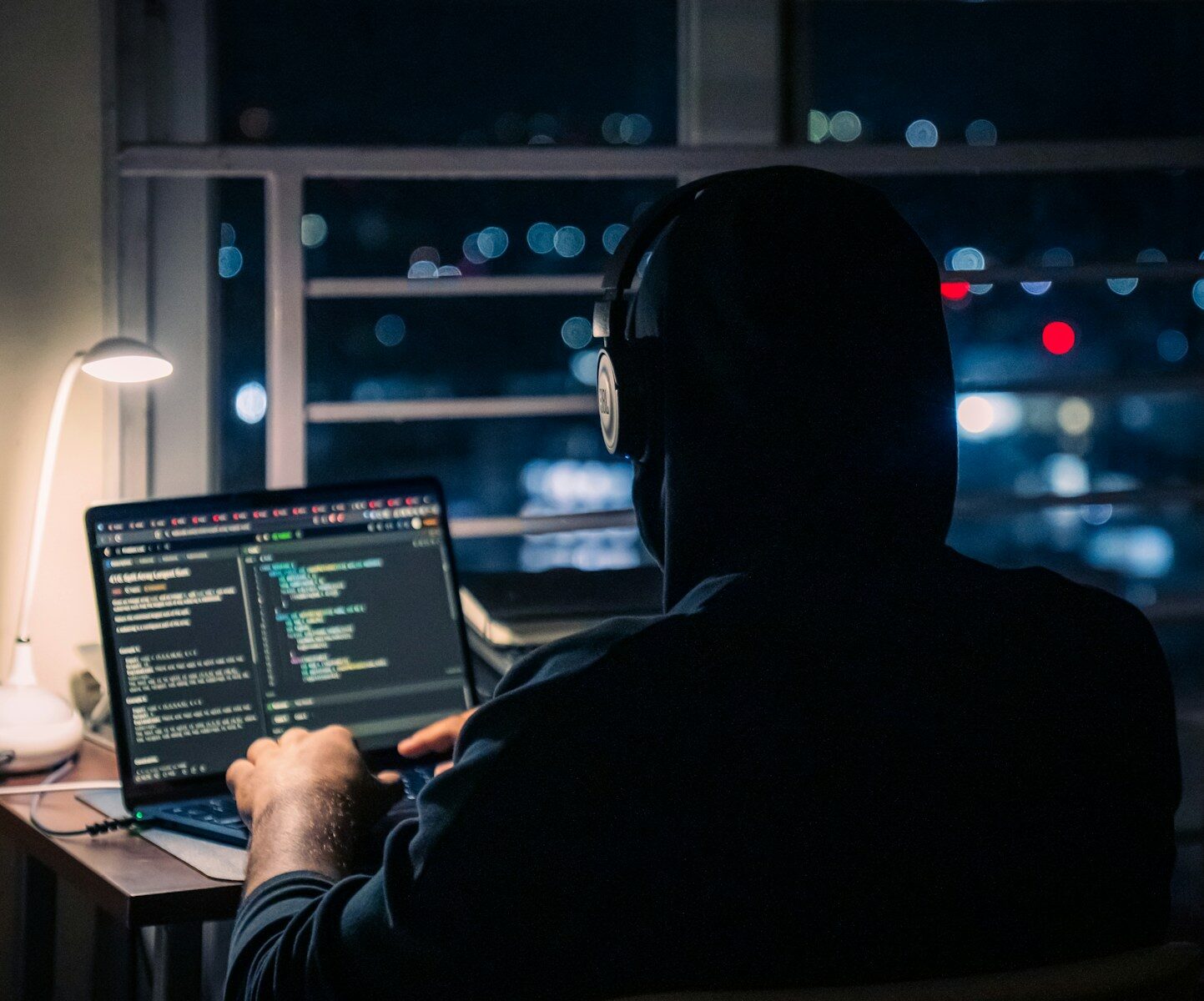
In 2026, our digital footprints are larger and more valuable than ever before. We store our bank accounts, medical histories, professional portfolios, and intimate memories on the cloud. Unfortunately, as our technology has advanced, so have the tools utilized by cybercriminals.
The rise of automated hacking scripts, artificial intelligence-driven social engineering, and sophisticated data breaches means that a “simple password” is no longer enough to protect your life. Cybersecurity is no longer just a concern for major corporations; it is an essential life skill for every individual.
The good news is that you do not need to be a computer scientist to secure your digital world. By implementing a few foundational, highly effective practices, you can shield yourself from over $99.9\%$ of common cyber threats. This comprehensive guide serves as your ultimate blueprint to personal digital safety and privacy.
1. The Death of Passwords: Why You Must Transition to Passkeys
For decades, we were told to create complex passwords with uppercase letters, numbers, and special characters. In 2026, this method is officially obsolete. Hackers can crack complex, traditional passwords in seconds using GPU-accelerated brute-force tools.
The modern solution is the absolute transition to Passkeys.
[Traditional Password vs. Passkey Architecture]
Password: User Creates Text ──> Sent to Server ──> Vulnerable to Phishing & Data Breaches
Passkey:  Biometric Key (FaceID/PIN) ──> Cryptographic Handshake ──> Immune to Phishing
What is a Passkey?
A passkey is a digital credential tied directly to a physical device (like your phone, computer, or a physical security key). Instead of typing a password, your device uses cryptography to prove your identity to a website.
- No Text to Steal: There is no “password” stored on a server. Even if a website experiences a massive database breach, hackers cannot steal your login credentials because they do not exist in text form.
- Immune to Phishing: Because passkeys are cryptographically bound to specific website domains, you cannot accidentally enter a passkey on a fake, lookalike phishing website.
- Biometric Speed: You log in instantly using your fingerprint, face scan, or device PIN.
Action Plan:
- Auditing your Accounts: Go to your major accounts (Google, Microsoft, Apple, Amazon, Banking apps) and look under Security Settings.
- Enable Passkeys: Select “Create a Passkey” and pair it with your device’s biometric system.
- Use a Password Manager: For websites that do not support passkeys yet, store unique, randomly generated $20$-character passwords in a trusted manager like 1Password, Bitwarden, or Dashlane. Never reuse the same password twice.
2. Multi-Factor Authentication (MFA): Setting Up the Right Gates
If a website does not support passkeys, you must enable Multi-Factor Authentication (MFA). MFA requires you to present two or more pieces of evidence to log in. However, not all MFA methods are created equal.
The Security Hierarchy:
$$\text{SMS-Based 2FA (Weakest)} \longrightarrow \text{Authenticator Apps (Strong)} \longrightarrow \text{Hardware Security Keys (Strongest)}$$
SMS-Based 2FA (Avoid if possible)
This is where a code is texted to your phone.
- The Vulnerability: Hackers can execute a SIM-Swap Scam, convincing your mobile carrier to transfer your phone number to a SIM card they control. Once they have your phone number, they intercept your security codes and hack your accounts.
Authenticator Apps (Recommended Baseline)
Tools like Google Authenticator, Microsoft Authenticator, or Aegis generate codes locally on your device every 30 seconds. Because these codes are not transmitted over cellular networks, they are immune to SIM-swapping.
Hardware Security Keys (Maximum Security)
Physical USB/NFC keys (like YubiKeys) represent the absolute gold standard of security. To log into your account, you must physically plug the key into your computer or tap it against your phone. Without the physical key, a hacker in another country cannot access your accounts—even if they know your username and password.
3. Spotting the Threat: How to Avoid AI-Powered Scams
In 2026, cybercriminals are leveraging generative AI to create incredibly convincing scams. The days of easily spotting a phishing email due to bad grammar or broken English are gone.
AI-Synthesized Phishing (Spear Phishing)
Hackers feed public data from your LinkedIn, X, or Facebook profiles into AI models to generate highly personalized, context-rich emails. They might mimic your boss’s writing style, mention your actual current projects, and ask you to click a link to “verify a document.”
Deepfake Audio & Video Calls
Using $3$-second voice snippets gathered from social media videos, scammers can clone a loved one’s or coworker’s voice in real-time. They call you pretending to be in an emergency, asking for urgent wire transfers or gift cards.
How to Protect Yourself:
- Establish a Family Safe-Word: Create a private, unspoken “safe-word” or phrase with your family members. If you receive an urgent call from a relative asking for money, ask them for the safe-word to verify their identity.
- The “Wait and Call Back” Rule: If you receive an urgent request from your boss or bank, do not act immediately. Hang up, look up the official contact number yourself, and call them back directly to confirm the request.
- Verify the Link Domain: Before clicking on any link in an email, hover your mouse over it to view the actual URL. Look for minor spelling errors (e.g.,
micros0ft.cominstead ofmicrosoft.com).
4. Securing Your Home Network and Public Wi-Fi
Your home router is the gateway to every smart device in your house—your TVs, security cameras, smart locks, and personal computers. If your router is vulnerable, your entire household is exposed.
4 Essential Router Tweaks:
- Change Default Credentials: Almost every router shipped comes with a generic admin username and password (like
adminandpassword). Hackers can access these directories online. Change your router’s admin login immediately. - Enable WPA3 Encryption: Ensure your Wi-Fi security setting is set to WPA3 (the current industry standard) or at least WPA2-AES. Avoid older, easily cracked standards like WEP or WPA.
- Set Up a Guest Network: Create a separate “Guest” Wi-Fi network for your smart home IoT devices (smart bulbs, robot vacuums) and visitors. This isolates your main laptops and smartphones from potential vulnerabilities in cheaper smart home products.
- Keep Firmware Updated: Enable “Auto-Update” in your router’s settings so it receives the latest security patches against hardware exploits.
Public Wi-Fi Safety
When you connect to the free Wi-Fi at a coffee shop or airport, anyone else on that network can potentially intercept your unencrypted data traffic (a “Man-in-the-Middle” attack).
- Use a VPN (Virtual Private Network): When on public networks, always activate a trusted, audited no-logs VPN (such as Mullvad or ProtonVPN). The VPN encrypts your traffic in an unreadable tunnel:
$$\text{Your Device} \xrightarrow{\text{Encrypted Tunnel (VPN)}} \text{Public Wi-Fi Router} \longrightarrow \text{Secure Internet}$$
- Disable Auto-Connect: Turn off “Auto-Join Public Networks” on your phone and laptop settings to prevent them from connecting to rogue hotspots automatically.
Conclusion: Take Action Today
Cybersecurity is not about achieving $100\%$ un-crackable perfection; it is about making yourself a “hard target.” Scammers look for the easiest lock to pick. By implementing passkeys, setting up authenticator apps, maintaining sharp skepticism towards strange requests, and securing your home Wi-Fi, you place yourself ahead of almost all potential digital threats.
Protecting your digital life is an ongoing journey of small, smart habits. Implement one step from this guide today, and secure your digital future.
What security measures are you planning to implement first? Have you already transitioned to passkeys? Share your security tips, questions, and thoughts in the comment section below!